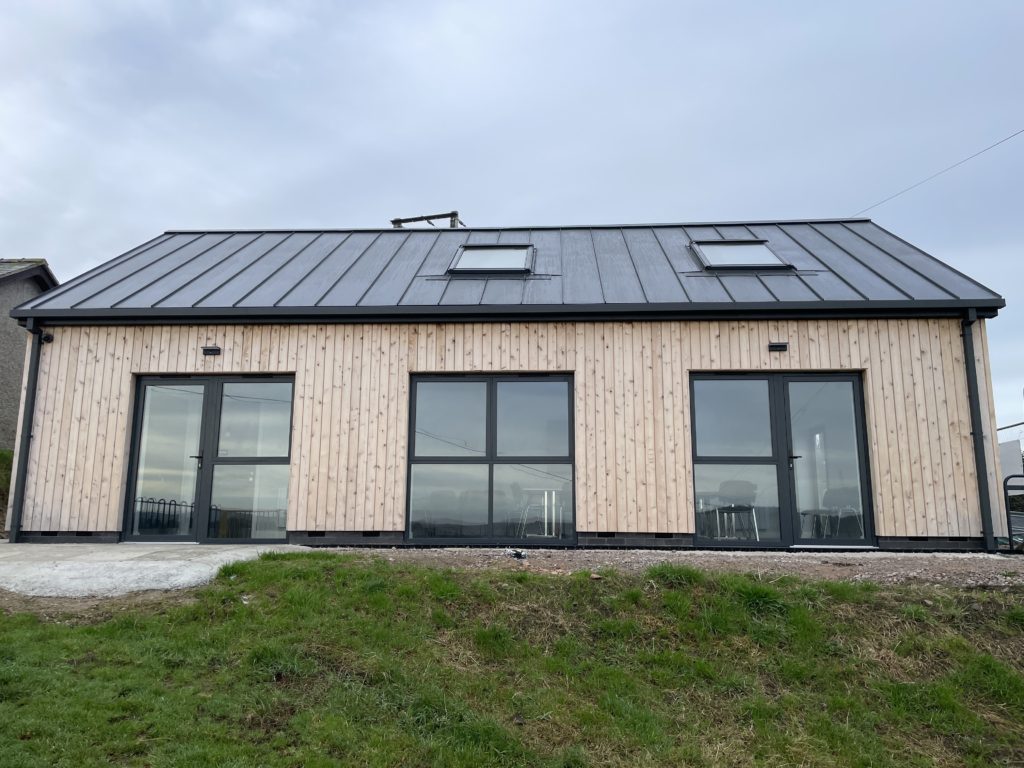
BOOKING: Neuadd Llanelian Hall
What3Words Location: taxi.confetti.candy
To book the hall you need to click on the link below & sign up with your details on Hallmaster and then REQUEST a booking which will be confirmed.
Detailed instructions from Hallmaster can be found further down.
Click Here to Book the Llanelian Community Hall with Hallmaster
When booking a slot, please allow time to set up and clear up ready for the next booking.
ALL bookings MUST be a minimum of 4 hours.
Cost for one off bookings for a session is £6.25 an hour (£5 if regular)
Week day (all day) £50.00 (£40.00 if regular)
Weekend day (all day) £60.00 (£50.00 if regular)
Extras can be booked e.g. dishwasher, extra cleaning, Smart TV.
Once we have received your booking, it will be checked and an email sent back to confirm the booking.
Please make sure you read the Terms and Conditions and tick they have been read and these will be sent to you with Hall Information, in a confirmation of booking email.
An invoice will be sent to the registered email address and we ask for payment, always prior to the event. Instructions how to pay, are on the invoice.
Please reference invoice number on payment.
Thank you
(please note that the village defibrillator is kept in a heated box in the telephone box opposite the White Lion pub).
Any queries Email: llcamc@btinternet.com
Click Here to Book the Llanelian Community Hall with Hallmaster
Hallmaster Instructions
Welcome! The Hallmaster Online Booking System is currently being used by this Hall or Venue and this brief guide will show you how to make the most of it as a customer.
To make a booking request from the weekly calendar or scheduler, click on the + symbol on the date and room you wish to book. If you are making a booking request for the first time, you will be asked to enter your contact details and a password so that you can track your booking status, any changes that are made, plus view any invoices and payments linked to that booking, much in the same way you would with an online shopping website.
If you have any questions please contact the venue directly (Note: If you don’t see the + symbol, then online booking has been disabled for this room or facility. Instead, contact the venue directly.)
Once you have done this, you will need to complete the rest of the booking request form as follows: Rooms: Tick the room(s) that you want to include for this booking. If booking the whole Venue, make sure all the boxes are ticked.
Name: This is the name of the event you are booking.
Start Date/Time: The start date and time of the event. If this is a recurring booking, this is the start date and time the first event in the series. End
Date/Time: The end date and time of the event.
If this is a recurring booking, this is the end date and time of the first event in the series. of Please note any specific queries should be addressed to your Hall or Venue Administrators and not directly to Hallmaster.
TOOLTIPS: On any page in the software, look out for the icon – hover over this icon (or tap on mobile) to see more information about the particular field or section it relates to.
Recurring Booking: If this is a recurring booking for multiple dates, tick this box and choose the booking frequency (eg Daily, Weekly etc), along with how many additional dates you want to add to this series. Individual dates in a series can be amended to a different date or time.
Make sure to click on the green Check Availability button. If there is a clash of bookings at any date, time or room, a red error message will display saying ‘The dates of this booking clash with other dates in the calendar, or they don’t end after they begin’. You can then check the weekly calendar or scheduler at the top of the screen to see where the clash is and amend the booking accordingly.
Note: You cannot proceed with creating a booking request while there is a clash. Booking Type: This is the general ‘type’ of booking you are making.
Choose from the options the venue has setup to indicate what kind of booking this is. If you are unsure what to enter here, contact your venue administrator.
Description: You can put as much or as little information about the event itself, including prices, what to bring and links to websites etc.
Privacy: There are 3 privacy settings for bookings: 1. Private: The Weekly Diary and Scheduler will only show the time the event is booked for and whether the booking is Requested or Confirmed. The booking will display as ‘Private Event’ and not show your Event Name, description or your contact details. 2. Public – Contact Details Hidden: The Weekly Diary and Scheduler will show the Event Name and a link to the description but will hide your contact details (eg name, email address, telephone number etc), once the booking has been confirmed by an administrator. If the event is still to be confirmed, the calendar will continue to display as ‘Provisional Booking’ 3. Public:
The Weekly Diary and Scheduler will show the Event Name and a link to the description and your contact details, once the booking has been confirmed by an administrator. If the event is still to be confirmed, the calendar will continue to display as ‘Provisional Booking’
Number of People Attending: Here you can indicate how many people are expected to attend your event. The venue may have made this a required field, in which case you will need to enter a value in order to continue with your booking.
Special Requirements: This can be a list of any specific requirements such as dishwasher, extra cleaning, TV.
Terms & Conditions: If this tick box shows, then the venue has provided a terms and conditions document that you will need to agree to before proceeding with your booking.
Save Booking: Once completed press Save and the request will automatically be sent to the Hall or Venue Administrator for processing, you will also receive an email from us confirming that the request has been sent – this is not confirmation of your booking. You will then be taken to your Hallmaster dashboard to view your bookings and invoices.
Please note any specific queries should be addressed to your Hall or Venue Administrators and not directly to Hallmaster Ltd
Additional Bookings: You can always make other booking requests from the Hall or Venue’s Calendar/Scheduler or by using the Request Booking button in the Bookings page of your Hallmaster Dashboard.
View your Bookings, Invoice and Payments: Once logged in to your own account, you will be taken to a list of your bookings where you can see an overview of their dates, times and status, and any invoices that are due for payment.
Email Verification: You may see a message on the dashboard regarding email verification – if so, press the button to send a verification email to your registered address. You won’t receive any further booking/invoice emails until this is done. If you don’t see the verification message in your inbox, then please check your spam/junk folders and make sure our emails are not being blocked by a filter or rule in your email service.
On the Request Booking Changes page, you can alter various properties of your booking, including the dates/times, description and privacy status etc. To request a cancellation for the booking, click the red ‘Cancel Booking’ button. If this is a series of bookings then you can click the red X icon next to the individual date you want to cancel as necessary. Once you are happy with the requested changes, press the green ‘Request Changes’ button to send this to the venue administrators. Please note that your changes do not take effect straight away, and will need to be reviewed and confirmed by the administrators first.